If you have had a Master Rotation approved prior to 8th July 2019, your
Master Rotation Travel should already be in the Application.
Skip to...
Whats Happens Now - Pre Approval?
Whats Happens Now - Post Approval?
Automatic Travel Creation - Rolling Forward
Creating a New Master Rotation
You will only have one Active Master Rotation. New Master Rotations should only be created when you...
- have a requirement to be on a Master Rotation;
- have been instructed by your Travel Planner to create one; AND
- don't currently have active Master Rotation Travel in the system;

| Company | Defaults to the Company you are currently profiled as working for. Contact your new Travel Planner if you have changed Company and its still showing your previous employer. |
| Roster (Hitch Pattern) | Refers to the Hitch Pattern you will be working to in the Master Rotation schedule. Select from the available Hitch Patterns your Company has advised you will be working. Note: Leaving this option as No Roster will only create ad-hoc travel. |
| Site Location | Defaults to Greater Prudhoe Bay. This will be selectable when multiple locations become available. |
| Workgroup | Will default a value from your profile (if any) - The values relate to the Team/Department your Master Rotation primarily relates to. |
| Booking Template | This field captures the Logical ongoing travel requirements for your Master Rotation into the future. Majority of template names relate to your Flight Time Out , the Camp Name you will be accommodated at, and the Flight Back. If you are on an alternating Hitch Pattern (Days 1 hitch / Nights the next), look for the patterns with Alternating Flights in the title. Please Review any default template name prior to submitting the request. |
| First Work Day | For a new Master Rotation you only need to select the first date you are required to fly. The system will calculate all the travel dates to/from site based on your Roster Pattern, Travel Template, and this start date. |
| Additional Information | If you have any information or requests for your Travel Planner add them here. |
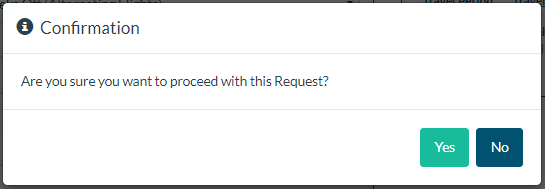
| Once you are ready to create the request for a Master Rotation Click -> Submit Request button and confirm you are ok to continue.
|
|
Whats Happens Now - Pre Approval?
All new Master Rotation Requests will need to be approved prior to any travel being created and confirmed. Your request will show in the My Trips/Rotations - Pending Approval side panel until approved.
You can Cancel the request at this point by Clicking -> Cancel button next to the travel request.

Whats Happens Now - Post Approval?
You will receive a notification email when the Approvals have been granted. Upon approval, the Master Rotation Travel requests will be built for your first 6 months - Your Hitch pattern decides how many rotational Travel Requests will be built for that 6 month period. Every 90 days the another 90 days worth of travel will be created by the application automatically.
Your built Travel Requests will show in the My Trips/Rotations - Approved side panel.

You can Cancel any requests prior to starting the related journey by Clicking -> Cancel button next to the travel request.
Changes to Master Rotational Travel requires an Ad-Hoc Travel Request - See the Creating Ad-Hoc travel article.
You can View the built itinerary for your requests by Clicking ->  .
.
The itinerary will update with your Alaska Airlines reservation confirmation number at least 24 hours out from departure time. The itinerary can be printed, and all your Travel itineraries can be viewed on a mobile device by logging onto the application through a mobile or tablet.
You will have two different Confirmation numbers if you have a return flight. Each flight is confirmed separately with a different unique Reference number from Alaska Airlines.

Automatic Travel Creation - Rolling Forward
Once a Master Rotation is in play, the application will automatically create Travel that falls within the first 6 Months upon approval of the Travel Request. The application will then automatically generate Travel for another 90 days, every 90 days out from the end of your last Travel Date in the application. These will appear in your dashboard as approved travel requests.
You do not need to diarize the creation of your future Master Rotation Travel the application takes care of this for you.
Things to Remember
- Do - ensure a Hitch Pattern (Roster) is selected to avoid creating ad-hoc travel
- Do - check the default Travel Template matches your travel requirements
- Do - make sure the First Work Day is your first flight date for your Master Rotation
- Do - recheck your itinerary 24 hours prior to travel for any updated travel details
- Do - make contact with your companies Travel Planner team if you need any support
Also See...